Attachments
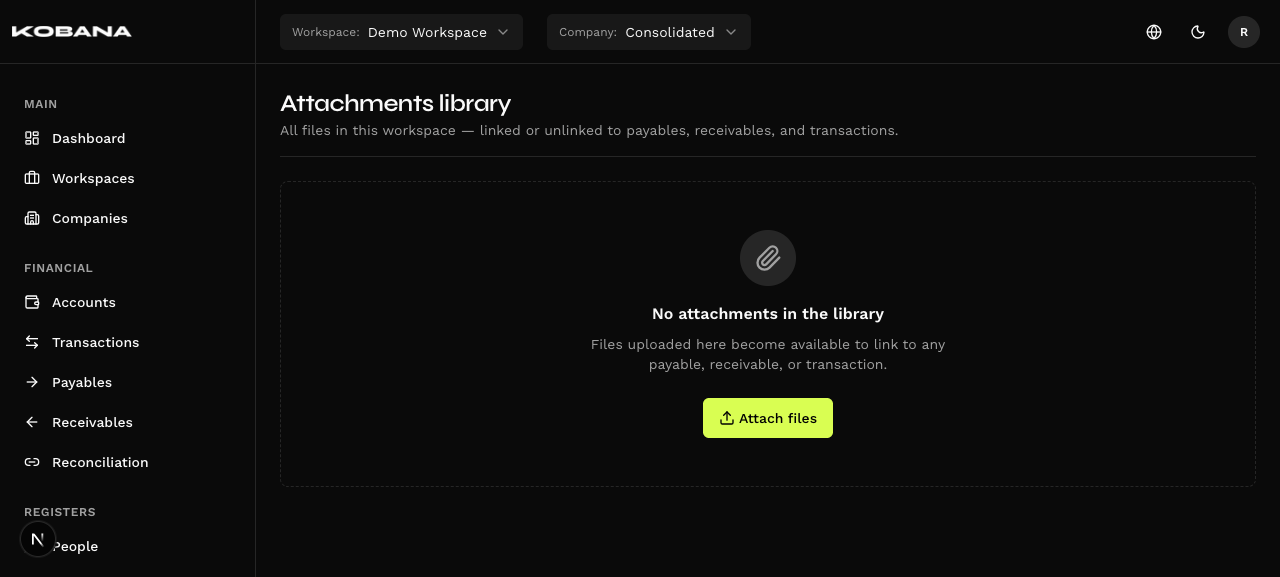
The Attachments library (/attachments) holds every file in the workspace — whether or not it is linked to payables, receivables, and transactions.
Two doors into the same collection
Attachments show up in two places, and the difference is the direction you come from:
- The library (
/attachments) starts from the file: you upload a document and choose which records it belongs to. - The Attachments section — inside a payable, a receivable, or a transaction — starts from the record: you are on a bill and choose which files to link to it.
It is the same collection. Every file you upload lands in the library, including the ones you upload from inside a form. There is no such thing as an attachment private to a record.
The link is many to many: one file can serve several records, and one record can hold several files.
Scope
The library covers the entire workspace, not a single company. It works with the header selector set to all companies, and a file linked to one company's bill stays visible to the whole workspace.
Uploading
Click Attach files and choose a file — drag it onto the drop area or click the area.
| Formats | pdf, png, jpg, jpeg, xml, ofx, csv, xlsx |
| Size | up to 10 MB |
A file over the limit is rejected right there: "File exceeds the 10 MB limit".
It is one file at a time, despite the plural on the button.
The system also checks that the content matches the extension — a renamed file is rejected.
The listing
Columns: Name (the title, when there is one, with the file name below it), Usage, Size, Uploaded at, and Uploaded by.
A file already linked to a record shows the Already attached mark in the Usage column.
- Search covers file name or title — it looks at both, so the file turns up under its original name as well as under the name you gave it.
- Tabs: All and Already attached. There is no inverse filter (unlinked only), and none by type, date, or author.
- The listing always runs from the most recent upload to the oldest, 25 per page. The order is fixed: you cannot sort by another column.
The icon at the right of each row opens a panel with the records linked to that file, each one with a link to open it. It is not a preview of the file.
Row actions
| Action | What it does |
|---|---|
| View | Opens the file in a new tab. PDFs and images open in the browser; xml, ofx, csv, and xlsx download. |
| Edit | Changes the Title — the only editable field |
| Link | Links (and unlinks) the file to records |
| Delete | Removes the file from the library |
Title
The only field you edit. When set, it appears in place of the file name in the listings; leave it blank and the file name takes over again.
There is no description, category, folder, or version, and you cannot swap the file out — only the title.
Linking
Link opens a dialog with three tabs — Payable, Receivable, and Transaction. Search by description, tick the records, and confirm.
Worth knowing beforehand:
- The selection does not survive a tab change. Switching tabs clears the ticks, so linking the same file to a bill and to a transaction is two operations.
- The dialog shows the first 25 of each tab, with no pagination. Beyond that, use the search.
- Already linked records move to the top, ticked and locked.
Unlinking lives here too: every linked row has a button to undo it. There is no confirmation on this path — the action is immediate.
Deleting
A linked file cannot be deleted. The system refuses and tells you how many records it is tied to: "Attachment linked to 2 payables, 1 receivable, and 0 transactions." Unlink it from all of them first.
A payment receipt holds on to its file too. There is no unlinking there: the receipt owns the file, and the message is a different one — "This attachment is a receipt's document — delete the receipt to remove the file". See Receipts.
There is no cascade: deleting never removes the records, and never undoes links on its own.
The dialog warns you: "The file will be permanently removed. If it is linked to any record, unlink it first." The action shows on every row, including linked ones — in those cases you only find out about the block after you confirm.
Attaching from inside a record
In the Attachments section of a bill or transaction, the Attach file button opens a dialog with two paths side by side:
- Pick from computer — uploads now. Here the upload fires as soon as you choose the file, with no confirm button.
- Pick from library — grabs a file that already exists. Shows 5 per page, with no search; the ones already attached appear ticked.
The footer carries Go to attachments library, which takes you to /attachments.
In this section, Unlink asks for confirmation and explains: "The file stays in the library and on any other records it is linked to."
On a bill you haven't saved yet, it depends on how the file got there. If you uploaded the file right there and changed your mind, Unlink deletes it from the library as well — the whole upload is undone, which is what you'd expect from an abandoned creation. If you took it from the library, Unlink only releases it from the draft: the file was in the library before you started, and it stays there.