Cards
Cards (/credit-cards, menu Movements › Cards) follows the cards of the workspace's companies: which statement each purchase falls on, how much of the limit is used, the installments and subscriptions still to come, the IOF on international purchases, the review against the bank's statement and the payment.
In this section
Register and convert
Register a card with a new account, convert an existing credit account, and the statement preview the form works out as you type.
Statement and closing
The card screen — statements by month, the statement header, the entries, the predicted and the confirmed closing date, and the history.
Entries and IOF
Enter one-off, installment and international purchases, refunds and interest and fees — which statement each falls on, the IOF and the exchange rate, editing a series, moving and anticipating.
Recurrences
Subscriptions charged to the card — the expected charges on each statement, confirming the real amount, not charged, the suggestion to update the amount, editing and ending.
Close, review and pay
The automatic closing and the statement's payable, the review against the bank's total, paying in full or in part, undoing, reopening, the prepaid top-up and the card in the cash flow.
Reports
IOF paid on international purchases, by month, card, category or supplier, and the recurrences' forecast vs. actual — exported as CSV or XLSX.
The three types
| Type | How it works |
|---|---|
| Credit | One statement a month. On closing, the statement becomes a payable and the payment leaves the account that pays the statement. It has a limit. |
| Prepaid | Topped up from a bank account; purchases come out of the balance. The limit is the balance itself. The statement closes with no payable. |
| Benefit | Works like the prepaid card (meal or food vouchers). |
The card and your accounts
Every card has a Credit account in My accounts: created with the card, or an existing credit account that was converted (see Register and convert). Each purchase entered on the card shows up once in the rest of the system:
| Where | What shows up |
|---|---|
| Transactions | The purchase, on its date and in its category, with the Card badge. The statement payment is a transfer, with the Statement payment badge; a prepaid top-up, with the Top-up badge. |
| My accounts | The card account's balance is the debt: purchases lower it, the payment brings it back. |
| Dashboard | Purchases count as expenses on their purchase date; the statement payment, being a transfer, does not count again. |
| Cash flow | The card is not cash. The outflow is the statement payment, on the due date, from the account that pays the statement. See Close, review and pay. |
| Payables | The closed statement becomes a payable, with the Card statement source. |
What came from the card is changed through the card. On Transactions, the purchase shows its edit, classify, reconcile and delete actions disabled, with the reason at the foot of the menu: "Card entry: change it through the card." "Open in the card" goes straight to its statement. The same goes for the two legs of the payment ("Statement payment: undo it from the card's statement.") and of a top-up ("Card top-up: delete it through the card.").
The list
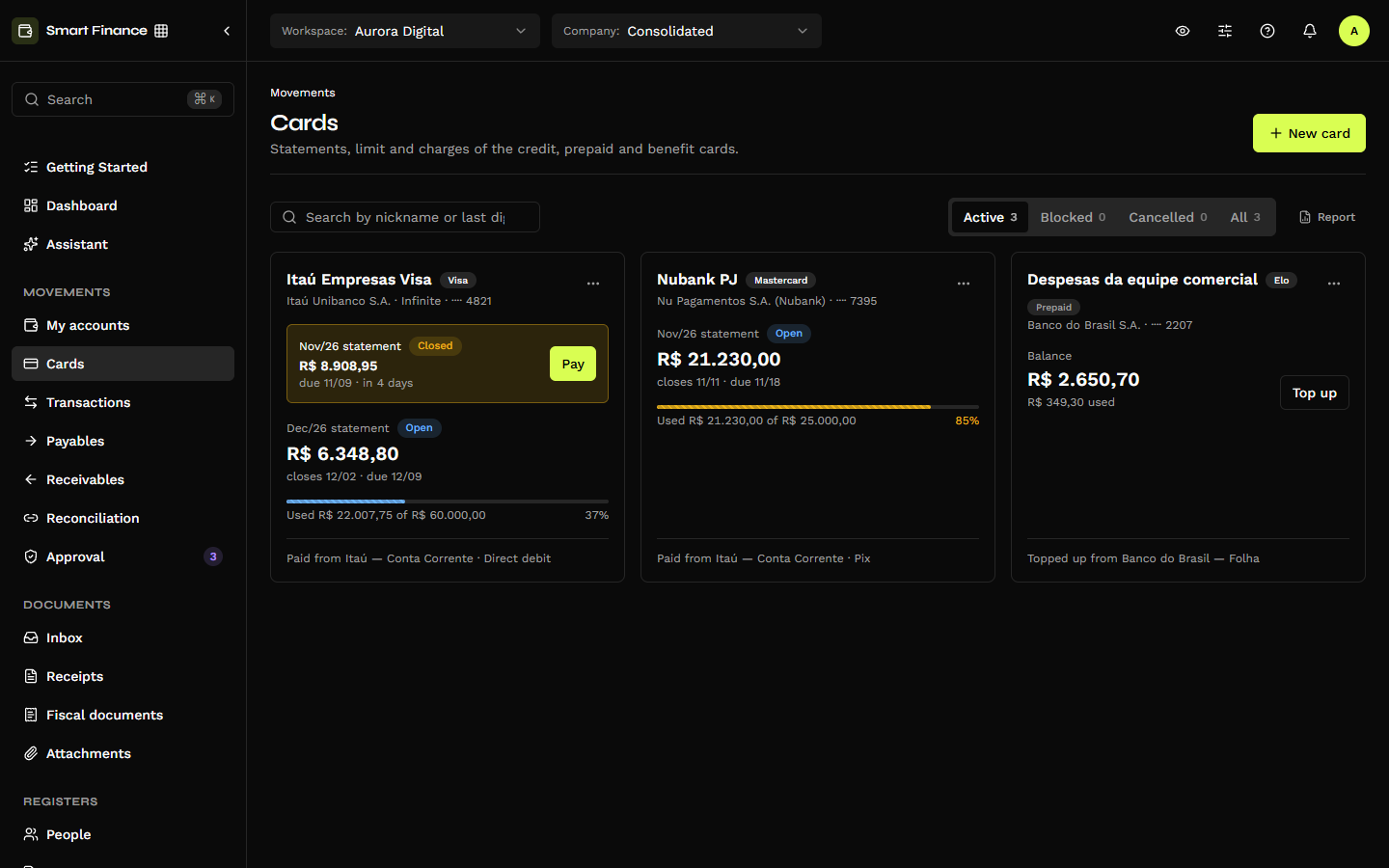
Each card is a tile, in the order of the next due date:
- Nickname, brand and, on prepaid and benefit cards, the type. Below, the issuing bank, the product and the last digits (
···· 4821). - The closed statement still to pay, highlighted: the amount, the due date ("due 11/09 · in 4 days") and the Pay button, which opens the payment on the statement itself.
- The current statement — "Dec/26 statement", its status, the expected total and "closes 12/02 · due 12/09".
- The limit bar — "Used R$ 22.007,75 of R$ 60.000,00" and the percentage. The bar turns yellow from the Limit alert set on the card and red above 100%.
- On prepaid and benefit cards, instead of the statement and the limit: Balance, how much was used and the Top up button.
- At the foot, where the money comes from: "Paid from Itaú — Conta Corrente · Direct debit", or "Topped up from …".
The ⋯ menu of each tile has Edit card and View the account in My accounts.
At the top: the search ("Search by nickname or last digits"), the Active, Blocked, Cancelled and All tabs with their counts, the Report pill (see Reports) and New card.
If the workspace has Credit accounts that are not cards yet, a notice at the top of the list offers Convert into a card.
Card status
Active, Blocked or Cancelled, on the card itself. The field's (i) icon explains: "A cancelled card stops generating new statements. Cards are not deleted, because their statements stay as history."
Permissions
In the role editor, the module has three groups: Credit cards, Card transactions and Card statements.
| To | You need |
|---|---|
| See the list | Credit cards › List |
| Open a card, its statements, history and reports | Credit cards › View details |
| Register, convert and edit a card | Credit cards › Create / Edit |
| Enter, edit, move, anticipate and delete purchases and recurrences | Card transactions › Create / Edit / Delete |
| Change the closing date and review the statement | Card statements › Edit |
| Close and reopen the statement | Card statements › Close and reopen |
| Pay, undo the payment and top up | Card statements › Pay |
As everywhere in the product, the screen does not hide a button from someone without the permission: the system refuses the action on save.
Through the API and MCP
Everything in this section is also on API v1 — cards, statements, entries, recurrences and IOF rates — and in the MCP server tools. None of them ever takes the full card number: only the last 4 digits.