Statement and closing
Clicking a card opens its screen (/credit-cards/<id>), with two tabs at the top: Statements and Recurrences (see Recurrences). The Report pill, to the right of the tabs, opens the reports already filtered by this card.
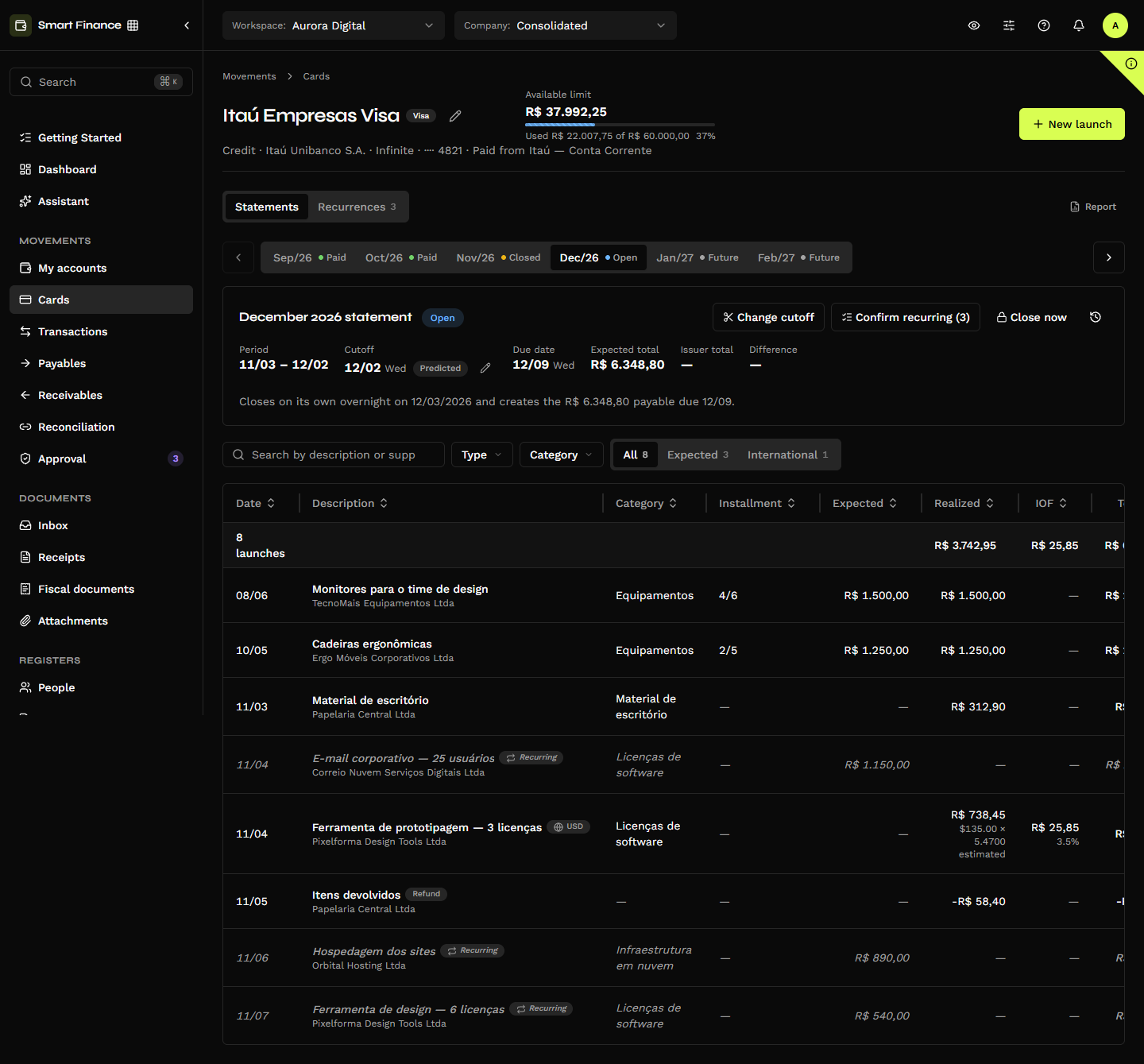
The card header
The nickname, the brand and the edit pencil; below, the type, the issuing bank, the product, the last digits and the account that pays the statement. On the right, the Available limit with the "Used … of …" bar — on prepaid and benefit cards, the Balance and the Top up button. And the New entry button (see Entries and IOF).
Statements, month by month
A strip of tabs shows six statements at a time, each with its month and a coloured dot for its status; the arrows bring the earlier and the later ones. The screen opens on the Open statement, and the one you pick stays in the address (?statement=2026-12), so you can send a link to a specific statement.
| Status | What it means |
|---|---|
| Future | Not started yet. It already receives installments and expected recurring charges, and its closing date can already be confirmed. |
| Open | The current cycle: it receives the purchases. There is only one per card. |
| Closed | The closing date has passed. On a credit card, it already has a payable. |
| Reviewed | The total matched the bank statement's. |
| Paid | The payment covered the total. The entries become Reconciled. |
| Partially paid | Less than the total was paid; the rest went to the next statement. |
The statement header
"December 2026 statement" and its status, with a row of figures. The fields with the (i) icon explain the figure on hover:
| Field | What it shows |
|---|---|
| Period | From the day after the previous closing to this statement's closing date. (i) "Purchases made in this period go on this statement." |
| Closing | The date, with the Predicted or Confirmed badge and, on an open or future statement, the pencil to change it. (i) "The last day of purchases on this statement. It stays predicted until you confirm the date shown in your bank's app." |
| Due date | Already moved to a business day. |
| Expected total | What is on the statement: realized, expected and IOF, minus refunds, plus the previous balance. Not charged and cancelled entries are left out. (i) "The sum of this statement's entries, with IOF and net of refunds." |
| Bank total · Difference | After the review: the bank statement's total and how far it is from matching. (i) on Bank total: "The total shown on the bank's statement, entered when reviewing the statement." |
Below, a line says what comes next:
- Open: "Closes automatically overnight on 12/03/2026 and creates a R$ 6.348,80 payable due 12/09."
- Future: "Future statement: it already receives installments and expected recurring charges. Its closing date can already be confirmed."
- Closed or reviewed: the payable, with its status and due date — and, if the total did not match, "The bank total does not match: check the entries and add what is missing."
- Paid: "Paid on 10/08/2026: R$ 10.142,65 from Itaú — Conta Corrente. The entries are reconciled."
Statement actions
The buttons change with the status:
| Action | Shows on |
|---|---|
| Change closing date | Open and future (also through the closing pencil) |
| Confirm recurring charges (n) | Future, open and closed, when there are expected recurring charges |
| Close statement now | Open |
| Review against the bank | Closed (highlighted) and reviewed |
| Pay statement | Closed and reviewed, on a credit card |
| Undo payment | Paid and partially paid |
| Reopen | Closed, reviewed, paid and partially paid |
| History (clock icon) | Always |
Closing, reviewing, paying, undoing and reopening are in Close, review and pay.
The statement's entries
The table lists what is on the statement, with the Date, Description (with the supplier below), Category, Installment, Expected, Realized, IOF, Total and Status columns. The first row adds up the statement: the number of entries and the total of each amount column, without the not charged and the cancelled ones.
- A recurrence's expected charge shows in grey italics, with the Recurring badge, until it is confirmed.
- An international purchase carries the currency badge (USD) and, below the amount, the calculation: "$135.00 × 5.4700 estimated". The IOF has its own column, with the rate.
- A refund shows the Refund badge and a negative amount.
- Not charged and cancelled entries are struck through.
- An entry moved here manually shows a padlock: "Moved here manually: it stays on this statement even if the closing date changes."
The search ("Search by description or supplier"), the Type and Category filters and the All, Expected and International tabs, each with its count. Each row's menu is in Entries and IOF.
Change the closing date
Banks do not always close the statement on the same day. Each statement keeps its own closing: it starts Predicted, worked out from the card's dates, and becomes Confirmed when someone checks the date in the bank's app or statement.
Change closing date (or the closing pencil) opens "Closing date · … statement", with the current date (Predicted closing or Confirmed closing) and the Closing date at the bank field. "Purchases made up to the closing date, inclusive, stay on this statement. From the next day on, they go to the following one."
Once you pick the date, the dialog shows before applying what will happen:
- "3 entries change statement", each one with where it goes;
- "The Jan/27 statement starts on …";
- or, when nothing changes, "No entry changes statement."
Keeping the same date as the predicted closing moves nothing: "No entry changes statement: the closing just becomes Confirmed." — and the button reads Confirm date. With another date, Apply new date. "The change goes into the statement history, with who made it."
What follows the change and what does not. Installments follow the first one: if installment 1 changes statement, the next ones move with it, one statement after the other. An entry moved manually stays where it is, and so does the previous balance of a partial payment. A closed statement never gains or loses an entry through a closing date change.
The limits. The new closing date cannot come before the start of the statement's period nor reach the next statement's closing date. A closed, reviewed or paid statement does not accept a change: reopen it first (see Reopen).
The statement closes on the predicted date if nobody confirms it. The overnight automatic closing does not wait for the confirmation. If the bank closed after the predicted date, the purchases of those days fall on the next statement; to fix it, reopen the statement and change the closing date.
Statement history
The clock icon opens the statement's History: "Everything that happened on this statement, newest first, with who did it and from where."
| Event | How it shows |
|---|---|
| Closing date confirmed | "Closing date confirmed: 12/02" |
| Closing date changed | "Closing date changed from 12/02 to 12/04 · 3 entries changed statement" |
| Closed | "Closed · total R$ 8.908,95 · payable created" |
| Reviewed | "Reviewed: bank total R$ 8.908,95" |
| Reopened | "Reopened (was Paid)" |
| Paid | "Paid: R$ 8.908,95 from Itaú — Conta Corrente" |
| Payment undone | "Payment undone: R$ 8.908,95" |
What the automatic closing did shows as System; the rest, with the e-mail of who did it and the channel (screen, API or MCP).