Reconciliation
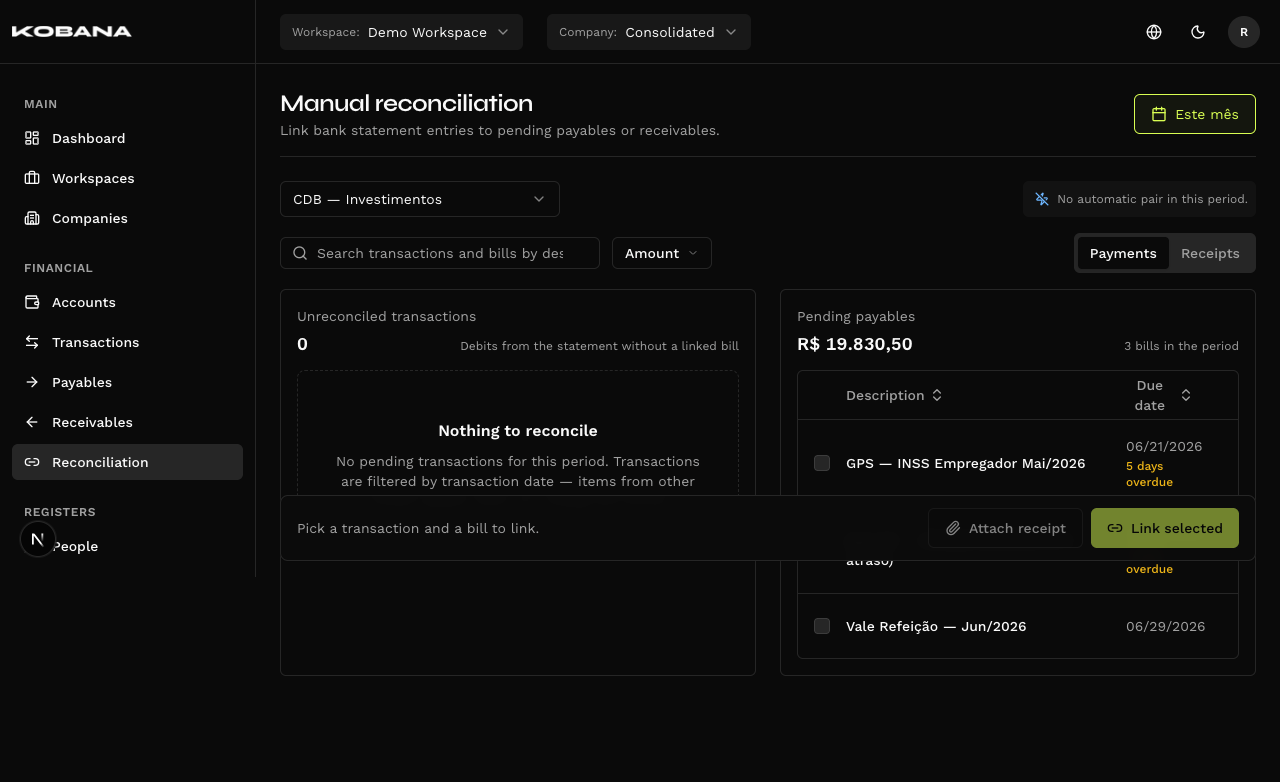
The Manual reconciliation screen (/conciliacao) links transactions from the bank statement to the bills — payable or receivable — that are still pending. This is where you tie off the loose end: the money already left or entered the account, and what's missing is saying which commitment it belongs to.
Concept
A reconciliation is the link between two things the system records separately:
- Transaction — the line in the financial account, usually coming from an imported statement.
- Bill — the payable or the receivable.
When the settlement happens inside the system itself ("Mark as paid" / "Mark as received", picking the account), the transaction is created already linked — there is nothing to reconcile. This screen exists for the opposite path: the transaction arrived through the statement and needs to find its bill.
The vocabulary of this screen is transaction and bill — not "bank transaction", and not "document" as a synonym for either. ("Document" does exist in the product, but it means something else: the invoice or bank slip behind the bill — hence the Document column and the Document number field.)
Prerequisites
Two gates, each with its own blocking screen:
- An eligible account. The account must be active and have manual reconciliation enabled. With none, the screen shows "No accounts available"; with an account that doesn't reconcile picked at the top, "Reconciliation is off for this account".
- One account picked. Reconciliation is done one account at a time. With All accounts at the top of the screen, the screen asks you to "Choose an account".
- An account with a company. Bills are per company, so an account with no company attached cannot reconcile: "Account has no company".
The screen
The scope comes from the top of the screen and from the page itself:
- Account — the Account selector at the top of the screen, next to the company. The bills' company is the account's.
- Period — a button in the header. The default is This month; the shortcuts are This month, Last month, and the last 7, 30 and 90 days. Transactions are filtered by date, and bills by due date.
- Search — free text on description or document, applied to both panels.
- Amount range — a minimum/maximum filter, also applied to both panels.
- Payments / Receipts tabs — the polarity. Payments matches statement debits with payables; Receipts matches credits with receivables.
Changing any of these clears your selection — the rows you picked may no longer be on screen.
The two panels
| Side | Panel | Contents |
|---|---|---|
| Left | Unreconciled transactions | Transactions in the account and period that don't have a linked bill yet. The heading shows how many there are. |
| Right | Pending payables / Pending receivables | The company's pending bills in the period. The heading shows the total amount outstanding. |
The right panel only loads pending bills — there is no status filter, because something already reconciled or already paid isn't a candidate. Each bill row shows the due date and, if it's late, how many days overdue. Each row's menu offers "Mark as paid" / "Mark as received" and "Edit".
Linking manually
- Select one or more transactions in the left panel.
- Select one or more bills in the right panel.
- Click "Link selected" in the bottom bar.
The link is n:m in both directions: several transactions to one bill (a payment split across two transfers), several bills to one transaction (a single debit that cleared three bills), or any combination. The button only requires at least one item on each side.
As soon as you select a transaction, the right panel reacts: bills with a compatible amount get a badge — "Same amount" (identical to the cent) or "Close amount" (within 5% of the amount, capped at R$ 50) — and move to the top of the list. With several transactions selected, the comparison uses their sum.
The bottom bar is pinned and follows the scroll. With nothing selected it points the way: "Pick a transaction and a bill to link." With a selection, it turns into a live summary of Transaction, Bill and Difference.
An amount gap warns, it doesn't block
If the totals on the two sides don't match, a warning appears with both amounts and the line "You can still link, but make sure it's the right match."
The check is informational. The system does not block reconciliation over an amount mismatch — interest, penalties, discounts and fees make the statement legitimately diverge from what was expected. You're the one who decides.
Reconcile all (automatic)
Above the panels, a strip shows how many automatic pairs the system found in the period. A pair only makes that count if it clears all three criteria:
- Exact amount — equal to the cent. "Close amount" does not qualify; it's left to your manual choice.
- Close dates — up to 3 days between the transaction date and the bill's due date. The tolerance is fixed, not configurable.
- 1:1 uniqueness — if one transaction has two candidate bills, or one bill has two candidate transactions, the pair is discarded. Ambiguity gets resolved by hand.
The "Reconcile all" button writes the batch straight through, with no confirmation screen. There is no preview of the pairs before they're saved — the barrier is the criteria, not a dialog. Each pair goes into the history as its own entry, so you can undo one without touching the others.
With no candidates, the strip simply says: "No automatic pair in this period."
Attaching a receipt
With exactly one transaction and exactly one bill selected, the "Attach receipt" button becomes active. It links the same file to both records — the receipt is reachable from the transaction and from the bill alike. With a multiple selection the button is disabled: the receipt would be ambiguous.
Recent reconciliations
The "Recent reconciliations" panel logs the links you created, grouped by session ("Current session" and earlier sessions, labeled by time). It starts collapsed; the counter in the heading shows the total. Each entry has a menu with "Undo".
This history lives in the browser, not on the server. It's kept in local storage, per device and per workspace — a colleague doesn't see your reconciliations here, and switching machines or clearing browser data wipes the list. It isn't an audit log: it's a shortcut for undoing what you just did. The links themselves are in the database and remain valid.
Undoing a link from outside this screen (from the bill's own page, say) removes the entry here on its own, so the button never points at a link that no longer exists.
Where reconciliation shows up afterwards
The detail screens for the transaction, the payable and the receivable show a card with the other side of the link:
- n:m reconciliation — the "Reconciled with…" card lists every member of the group, with a link to each one.
- 1:1 link — the card shows the single record. When the transaction was born from a settlement made inside the system, the card changes its name and the action becomes "Undo", not "Unlink". The name depends on where you are: on the transaction, "Generated by payable settlement" / "Generated by receivable settlement"; on the bill, "Paid — generated transaction" / "Received — generated transaction".
"Unlink" dissolves the whole group: the bills go back to pending and the transactions are left loose. "The transactions themselves are not deleted."
An imported reconciliation cannot be unlinked. A reconciliation mirrored from Fintera is read-only — the card doesn't offer the action. It reflects what exists in the source system, and undoing it here would have no effect: the next import would bring it back.
Empty states
- "Nothing to reconcile" (left) — there are no pending transactions in the period. Since the filter is the transaction date, items from other months appear when you change the period.
- "Nothing pending" (right) — there are no pending bills in the period. Here the filter is the due date.