Receivables
Receivables (/receivables) record the organization's incoming commitments: customer subscriptions, sales, services rendered, and any amount to be received.
In this section
Lifecycle
States, transitions and receipt — Draft → Pending → Received.
Installments and recurrence
Split into installments or repeat periodically — same behavior as payables.
Bank slip and Pix charges
Create a bank slip or a Pix charge from a receivable through the Banking Gateway — prerequisites, states and cancellation.
CSV import
Import batches of receivables from a spreadsheet — accepted columns and a forgiving format.
The listing
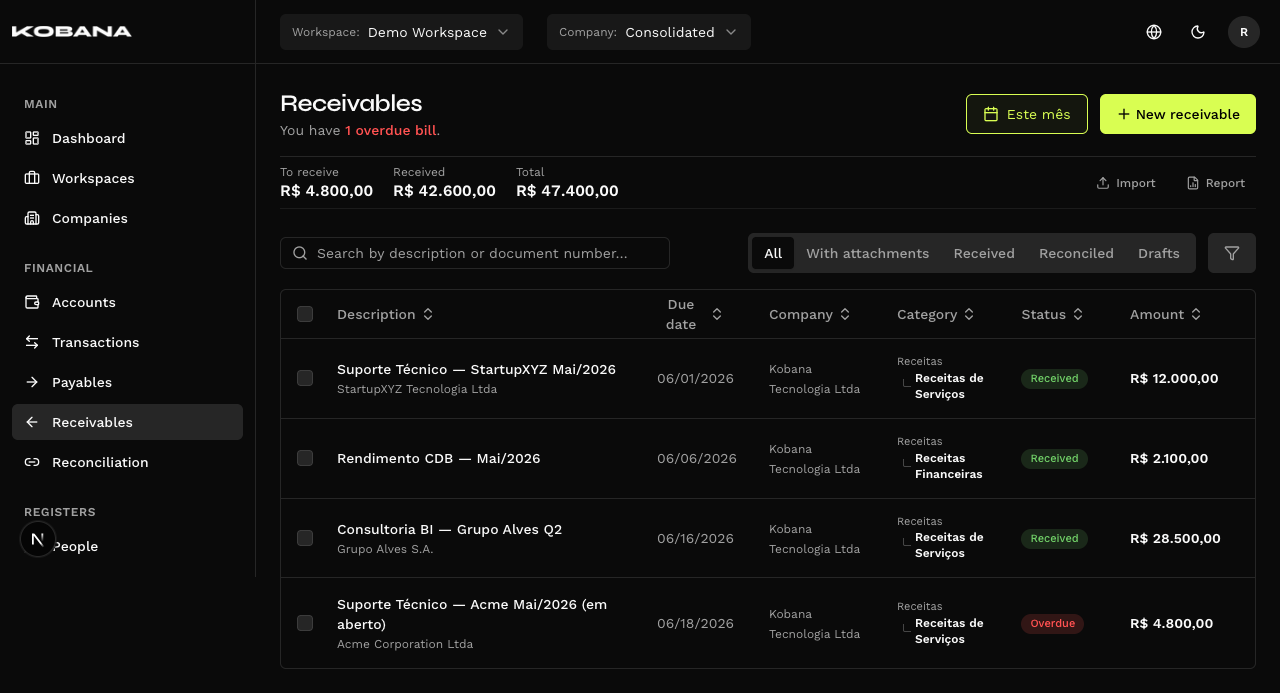
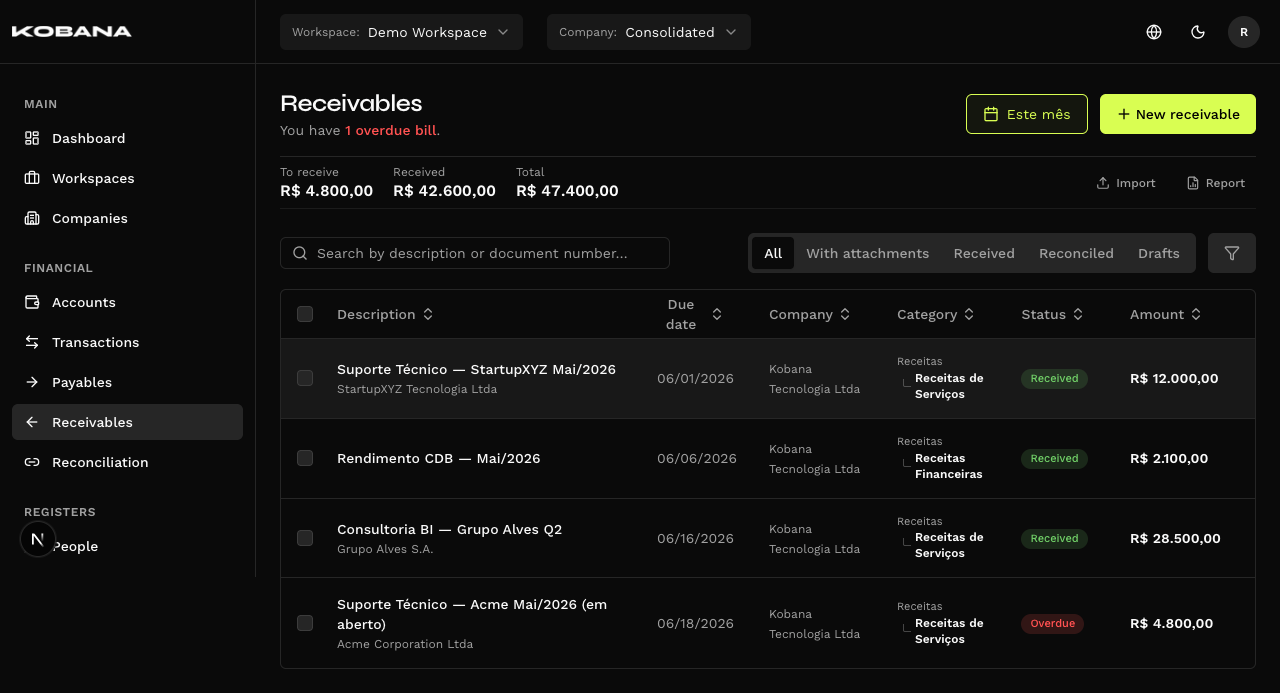
The header opens with three totals for the period — To receive (what is still pending), Received and Total — plus a subtitle that sums up the situation. It is actionable: when something is late, the sentence "You have 3 overdue bills" renders the red part as a button, and clicking it applies the late-bills filter (the Overdue badge). With nothing late, it becomes "You're all caught up on receivables."
The Period button sits in the header, next to "New receivable". To the right of the totals are two action pills: "Import" (opens the import panel below, and clears the search and filters to leave the list in a clean state) and "Report" (opens in a dialog, without touching the listing). Importing requires a specific company selected — in the consolidated view the pill shows a notice instead of opening.
Filters
- Search — by description or document number.
- Quick filters — All, With attachments, Received, Reconciled, Drafts.
- Advanced filters — a panel with the combined criteria; a counter shows how many are active, and a summary lets you clear or edit them without reopening the panel.
Columns
Description, Due date, Category, Status, Amount — plus Company, which only shows in the consolidated view (with a single company selected, every row would carry the same value). Tax and Notes exist but come hidden; turn them on from the columns menu.
"Status at the bank" shows the state of the charge — Registering, Registered, Overdue, Paid, Cancelled — and reads "-" for a bill that was never charged.
"Settlement" belongs to payables only — here the receipt method materializes in the transaction, when the payment is received. And the general status column is simply "Status", not "General status": receivables do not go through approval.
Row actions
Nine actions, several of them conditional on the row's state:
| Action | When it shows |
|---|---|
| Mark as received | While a manual receipt is still possible |
| Reconcile | Already received and not yet reconciled |
| Installments | Installment type |
| Recurrences | Recurring type, within a series |
| Classify | Always |
| Edit | Always |
| Undo | Already received |
| Cancel | Pending only |
| Delete | Always |
Edit and Delete always appear, but with a standing charge the operation is limited: the fields that describe what was charged are locked and deletion is blocked — see Charge.
Bulk actions
Once you select rows, the bar offers "Classify selected" and "Delete", and shows the live To receive, Received and Total figures for the selection. "Classify selected" only exists with a specific company selected: creating a new customer or category by name needs an unambiguous company.
The form
Fields are grouped into sections. The company is not a field — it comes from the header selector, and the screen sends you back there if none is chosen.
ESSENTIALS
| Field | Notes |
|---|---|
| Amount (R$) | Required. A currency field, with a mask — you type the amount, not a decimal string |
| Due date | Required. On create, there are relative-date shortcuts |
| Receive into | The financial account expected to take the money in |
| Description | Required |
| Customer | Required. Searches among the people flagged as customer, and lets you register one by name on save |
| Accrual month | Required. A month picker, not a day picker |
CLASSIFICATION
- Type (required) — One-time, Recurring or Installment. The choice reveals the next field: Recurrence (the period) for recurring, Installments (the count) for installment.
- Category — revenue category; it also accepts registering one by name.
- Classification center — with the Split shortcut beside it. Turn it on and the split dialog opens, and the single field gives way to a summary of the division. See Classification centers.
DOCUMENT & PAYMENT
Document number (invoice, bill…) and Document date. That's all — despite the name, the section carries no payment fields on the receivables side.
Withheld taxes · Notes and IR
Two sections side by side. Withheld taxes is the editor for taxes withheld at source, as pills. Next to it, the "Tax-relevant" pill (on/off) and "Add note", which opens the free-text field.
Attachments
When creating, you can attach files before saving — they are linked along with the record at save time.
Confirm receipt
The "Confirm receipt" dialog has two tabs:
- Receive — give a Receipt date and a Destination account. The system marks the bill as received and creates the inflow transaction.
- Receive & reconcile — "Receive this bill by linking it to a transaction that already exists in the statement — no duplicates." Pick the transaction; candidates carry a "same amount" / "close amount" hint.
The "Receipt adjustments" section (optional) takes Interest and Discount. Below it, Amount received shows what enters the account — that figure, not the bill's own value, is what the incoming transaction is booked at.
Differences from payables
| Receivables | Payables | |
|---|---|---|
| Final state | Received | Paid |
| Approval gate | Does not go through it — there is no approval on the receivables side | Every new bill awaits approval when the gate is on (the default) |
| Operation type and document | There is none — the receipt method materializes in the transaction, when the payment is received | They decide how the bill will be paid and unlock the coordinates |
| Payment coordinates and tax form data | There is none. "Withheld taxes" exists, but it is something else: what the payer withholds from what you have to receive, not a tax form to pay | Barcode, Pix, bank details, tax form data |
| Banking gateway | Create charge — a bank slip or Pix for the customer to pay | Bank dispatch — the payment leaves your account |
| Proof of payment | There is none: a proof of payment is about money going out | Captured on its own at confirmation — see Receipts |