Security
Security (/settings/security) gathers the rules that protect the money leaving through the bank: what can be sent, from which accounts, to which payees, through which channels and within which limits. It applies only to payments and transfers — charges are out of scope.
The rules belong to the workspace: they apply to all of its companies at once, and the screen says so at the top ("Applies to every company in the … workspace."). With no workspace selected, it asks you to pick one.
Where it lives
System menu → Security.
What the rules hold back
Almost everything here acts when sending to the bank. Creating and approving bills stays free: a bill of a type that is off, from a blocked account or to a payee that is not allowed can be created and approved as usual — it just doesn't leave for the bank.
There are three exceptions, which act before dispatch:
- the Channels tab, which has its own Create and Approve switches;
- the Allow approvals at night switch, on the Limits tab;
- the Approval Settings, which also go through Kobana (see Who can request changes).
A limit is not freed by editing or deleting a bill. What was already sent to the bank is recorded separately, with the amount sent: deleting the bill or changing its amount or payee afterwards gives nothing back to the limit. Only a payment that was canceled, rejected, reproved or failed at the bank stops counting.
Nothing takes effect right away
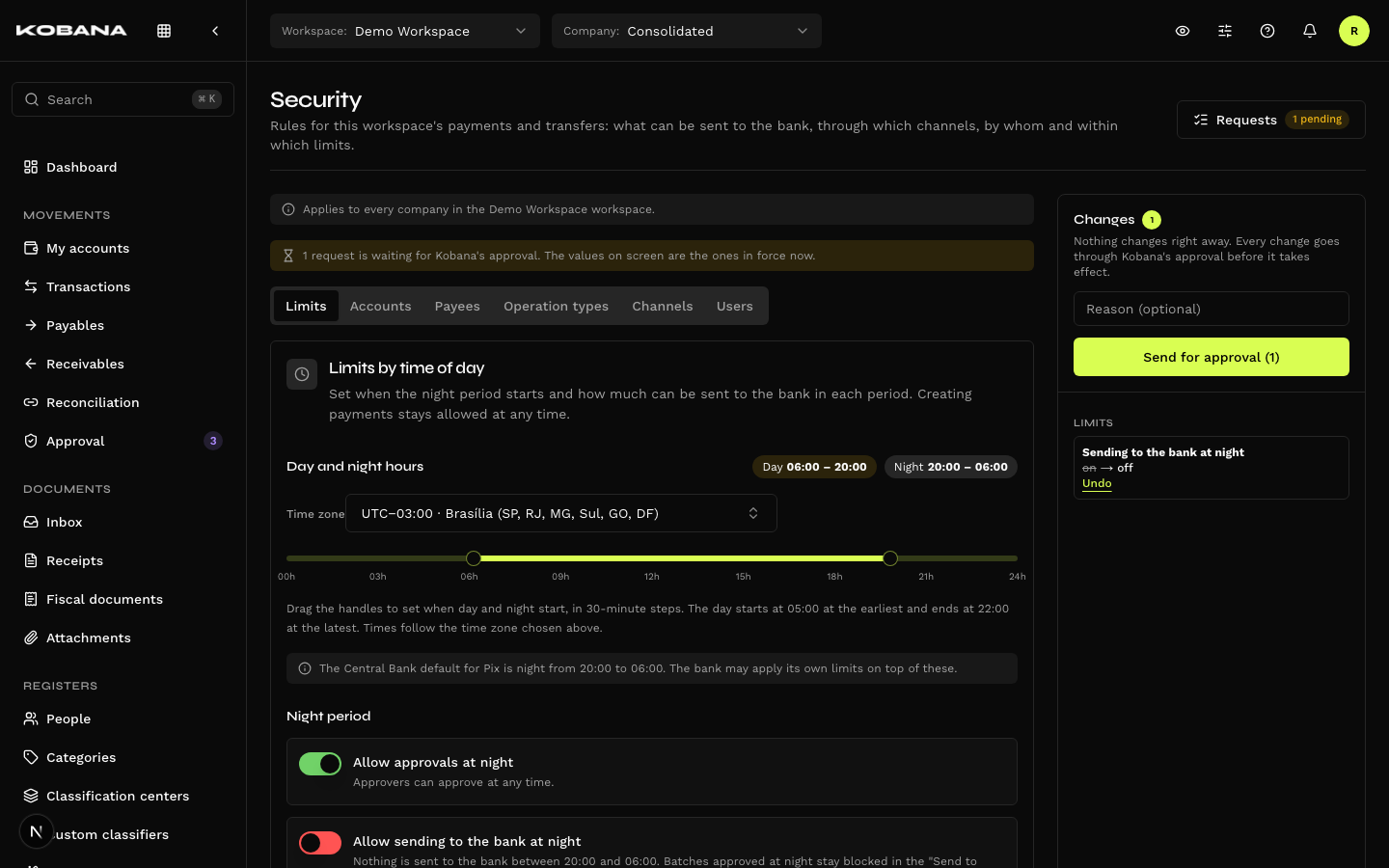
No change on this screen takes effect immediately. Every change becomes a request, which Kobana reviews and approves or denies. A security rule anyone could loosen on the spot would protect nothing.
In practice:
- You change whatever you want, on as many tabs as you want. The changes stay in a draft until you send them; once sent, the screen goes back to showing the values in force.
- Each change shows up in the Changes sidebar, on the right, with the value before and after and an Undo button per item.
- The Reason (optional) field explains the request to whoever reviews it.
- Send for approval sends everything as a single request. The button is always visible — pinned to the top of the sidebar and, on narrow screens, in a bar stuck to the bottom.
The draft lives only in the browser. If you leave the page without sending, the changes are lost — the browser warns you before leaving.
While requests are under review, the screen shows the notice "1 request is waiting for Kobana's approval. The values on screen are the ones in force now." The new rule only takes effect once Kobana approves it.
Requests
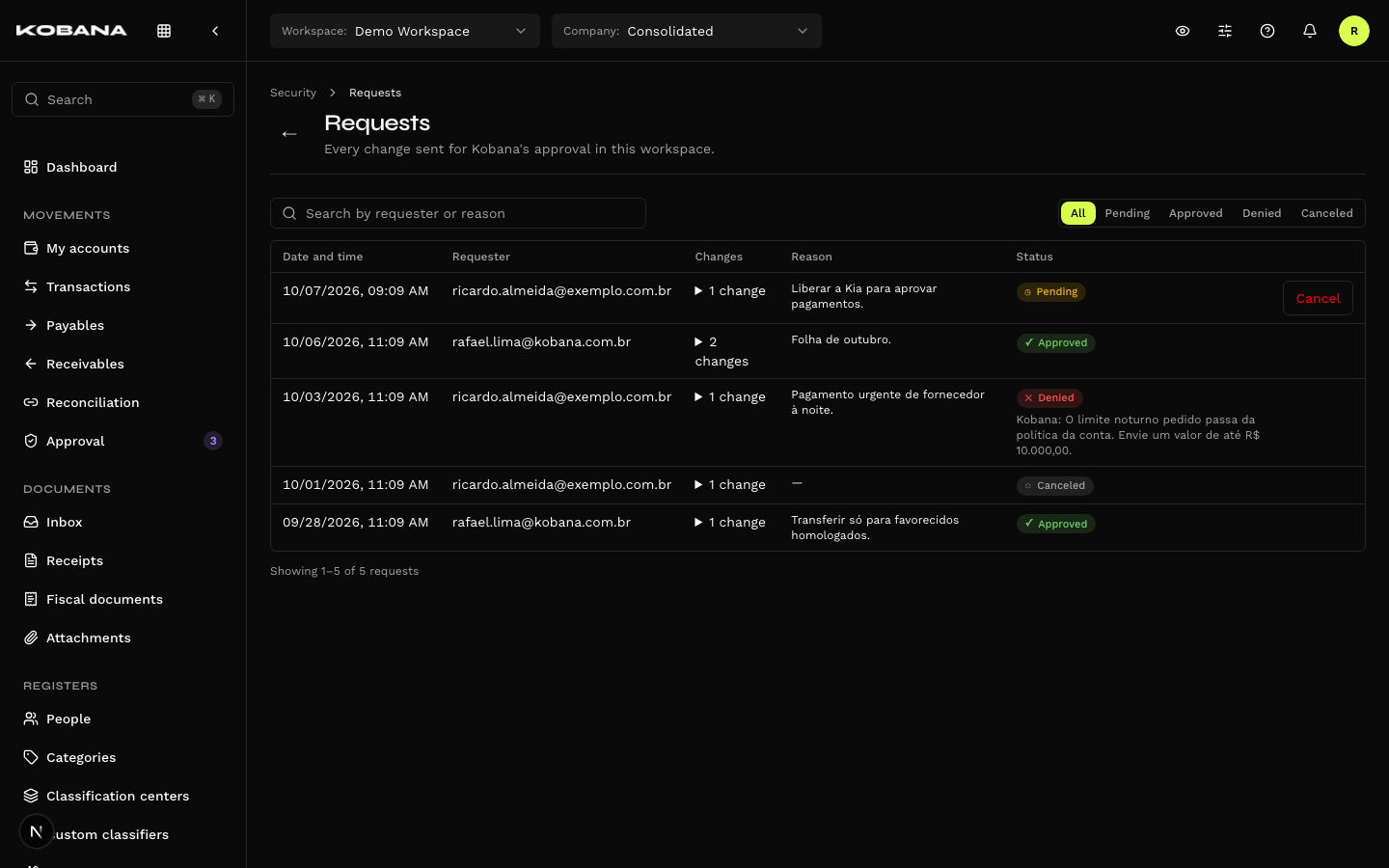
The Requests button, at the top of the page, shows how many are pending and opens the list of every request in the workspace, with search by requester or reason and a status filter.
| Column | What it shows |
|---|---|
| Date and time | When the request was sent |
| Requester | Who asked |
| Changes | What changes, item by item |
| Reason | The text sent along |
| Status | Pending, Approved, Denied or Canceled — plus Kobana's reason, when there is one |
| Actions | Cancel, on pending ones |
Cancel withdraws the request from review ("Kobana will no longer review these changes."). To ask again, redo the changes on the screen. Anyone who can create that request can cancel it — not only its author. Canceled requests stay on the list as history. Requests made from the Approval Settings screen show up here too.
More than one request can be pending at the same time. If two touch the same value, the second one to be reviewed is denied for conflict — the value it expected to change is no longer the same.
The tabs
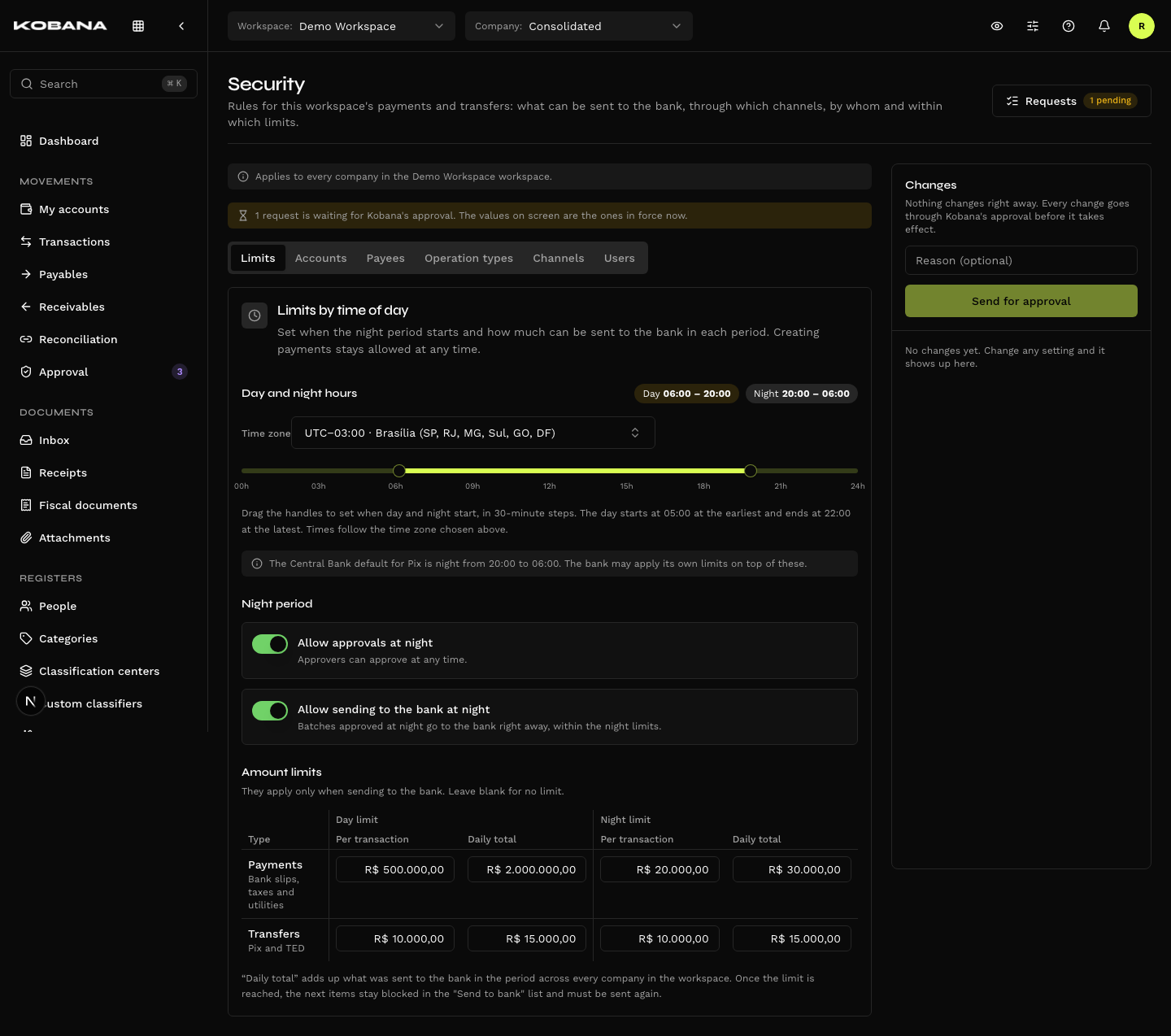
Limits
Sets when it is day and when it is night and how much can be sent to the bank in each period.
- Time zone — the clock for every rule: what is day, night, "today" and "this month". The search accepts a city, region or UTC; the Brazil zones come first, then Other time zones. Default: São Paulo.
- Day and night hours — drag the two handles to set when day and night start, in 30-minute steps. The day starts at 05:00 at the earliest and ends at 22:00 at the latest. Default: day from 06:00 to 20:00, which is also the Central Bank default for Pix.
- Night period, with two switches:
| Switch | On (default) | Off |
|---|---|---|
| Allow approvals at night | Approving works at any time | The approve buttons are blocked between the start of the night and the start of the day |
| Allow sending to the bank at night | Sending works as usual, within the night limits | Nothing goes to the bank at night — see Night sending off |
- Amount limits — a matrix with Payments (bank slips, taxes and utilities) and Transfers (Pix and TED) as rows, and Day limit and Night limit as columns, each with:
- Per transaction — the maximum amount of a single dispatch;
- Daily total — the sum of everything sent to the bank in the period, across every company in the workspace.
A blank field means No limit. The per-transaction limit can't exceed the daily total. With night sending off, the night limits have no effect.
Accounts
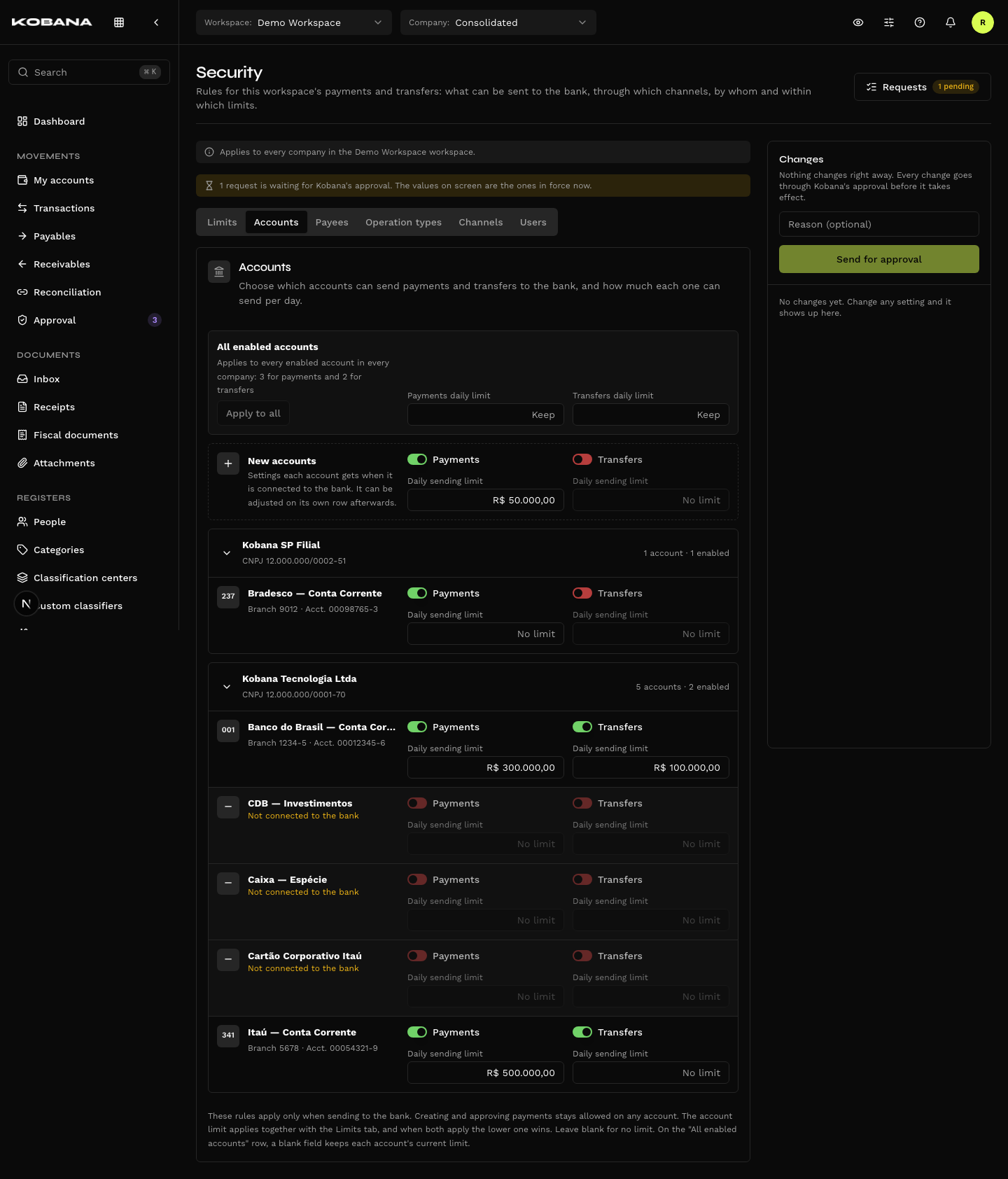
Chooses which accounts payments and transfers can leave from, and how much each one can send per day. Accounts are grouped by company; each has a switch for Payments and another for Transfers, each with its own Daily sending limit.
- New accounts — the first row is the template: the settings each account gets when it is connected to the bank. It can be adjusted on its own row afterwards. Changing the template does not change accounts that already exist.
- Accounts Not connected to the bank show up locked — there is nothing to send through them.
- All enabled accounts applies the same limit to every enabled account in every company, with Apply to all. A blank field on that row keeps each account's current limit.
The account limit applies together with the ones on the Limits tab: when both apply, the lower one wins.
Payees
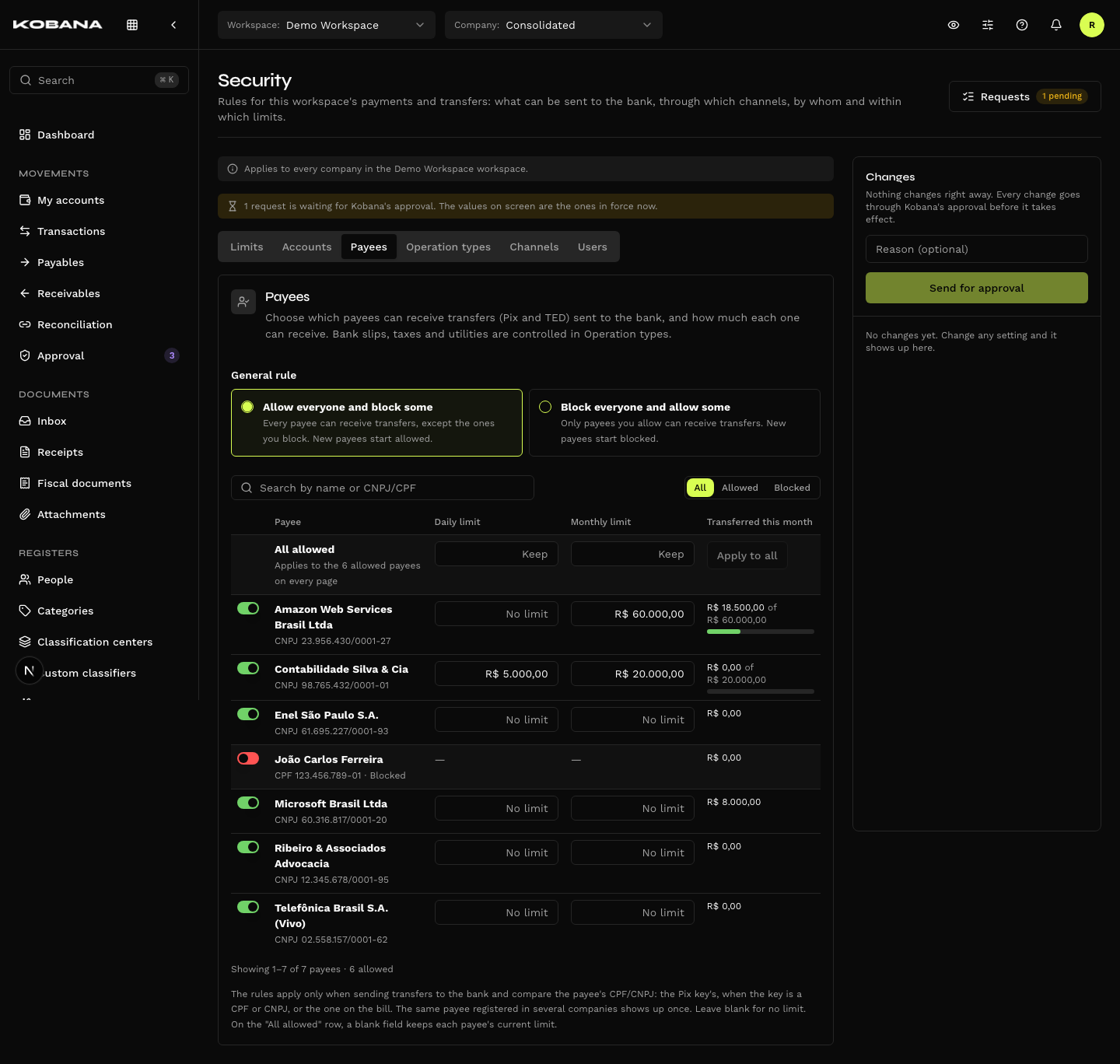
Chooses which payees transfers can be sent to and how much each one can receive.
Transfers only — Pix and TED. Bank slips, taxes and utilities don't go through this rule: there, the money goes wherever the barcode says, and a supplier list would protect nothing. They are controlled in Operation types.
General rule, in two modes:
| Mode | Who receives | New payees |
|---|---|---|
| Allow everyone and block some (default) | Everyone except the ones you block | Start allowed |
| Block everyone and allow some | Only the ones you allow | Start blocked |
Each mode keeps its own list: switching from one to the other doesn't erase the other's marks.
The payee is identified by CPF/CNPJ, not by the person record. That's why the same supplier registered in several companies shows up only once ("Registered in 3 companies"), and its limits count across companies. The document compared at dispatch is:
- the Pix key's, when the key is a CPF or CNPJ;
- the payee's CPF/CNPJ entered on the bill, otherwise.
For Pix by email, phone or random key, the system can't tell who owns the key: the document entered on the bill is what counts. If you want full rigor, turn those key types off in Operation types.
For each payee, the list shows the Allowed switch, the Daily limit, the Monthly limit and Transferred this month. The month is the calendar month, in the Limits tab's time zone. The search accepts a name or CPF/CNPJ, and the filter separates Allowed from Blocked. Documents the rule mentions but that no longer have a record show up as No active record.
All allowed applies the same limits to every allowed payee — on every page, or only those found by the search. A blank field on that row keeps each payee's current limit.
Operation types
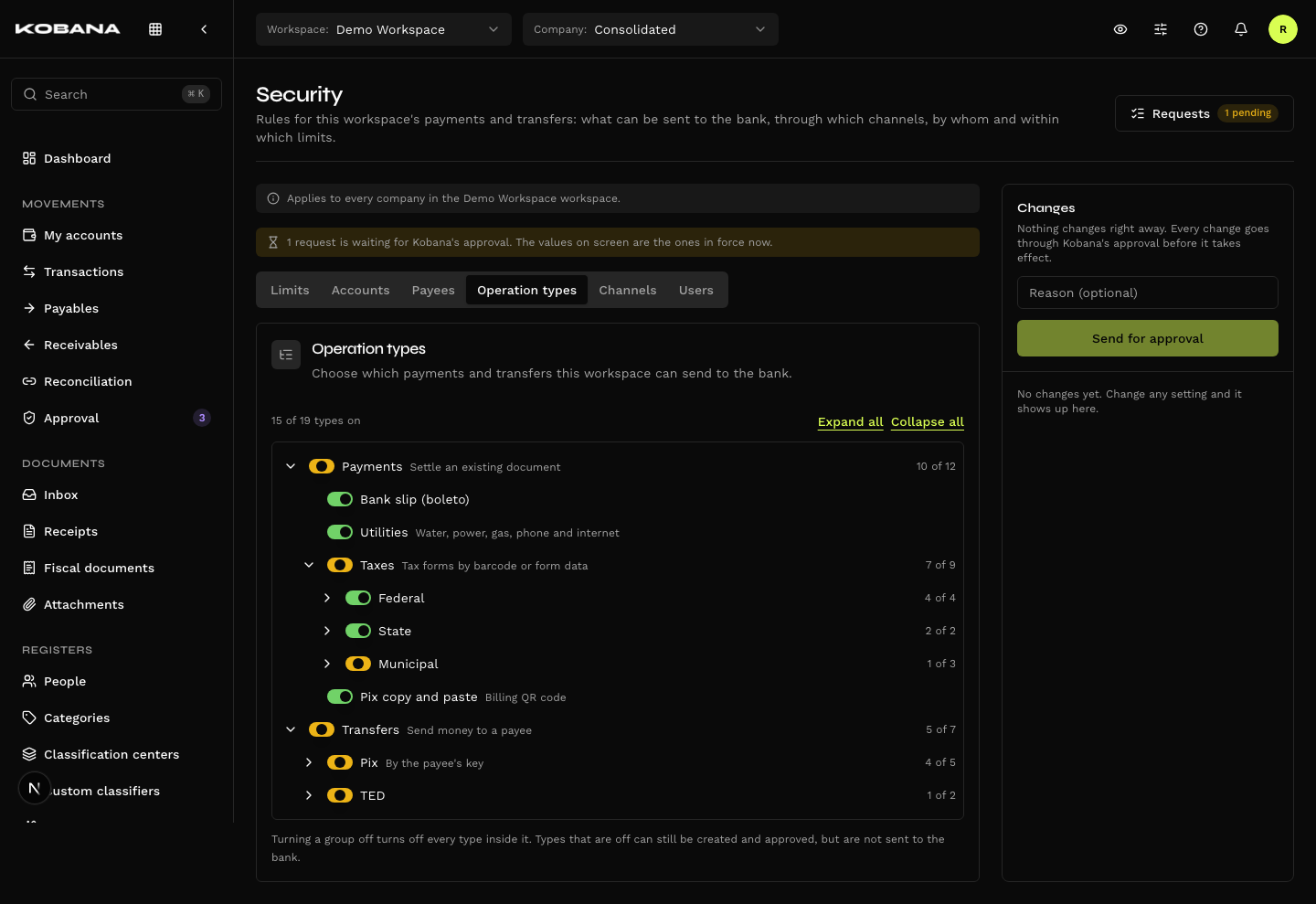
A tree with everything that can be sent to the bank, with switches that turn each type on and off:
- Payments — Bank slip; Utilities; Taxes (Federal: DARF, GPS, GRU and FGTS; State: ICMS and DARE; Municipal: ISS, IPTU and ITBI); Pix copy-and-paste.
- Transfers — Pix by key type (CPF, CNPJ, email, phone, random); TED to a payee account or a judicial deposit.
Turning a group off turns off everything inside it; a group with some types on and some off shows in yellow. Types only turn on and off — there is no limit per type.
Types that are off can still be created and approved, but are not sent to the bank.
Channels
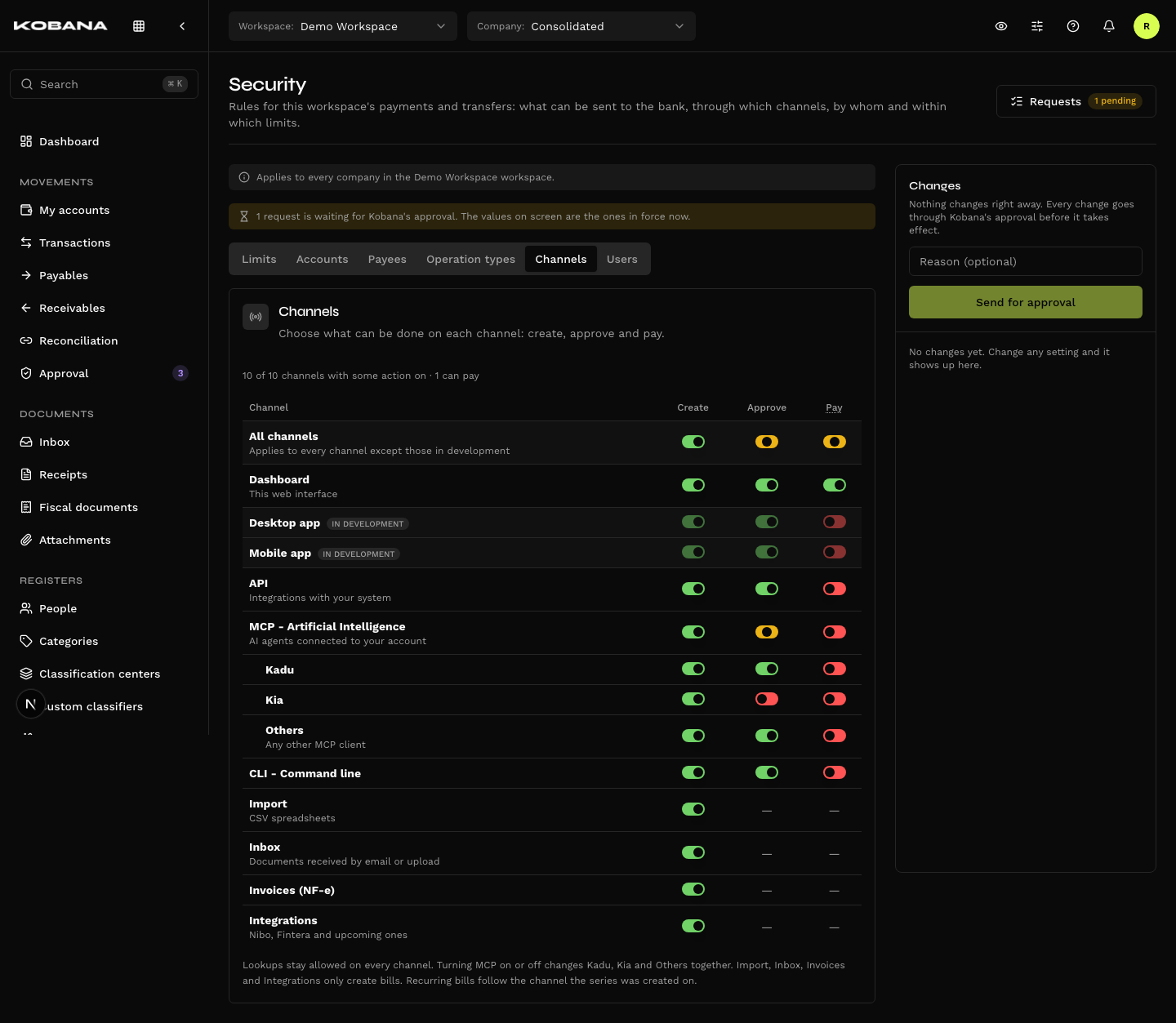
A matrix with what can be done on each channel: Create, Approve and Pay ("Send to the bank").
Access channels — the way a person or a system gets in:
| Channel | Note |
|---|---|
| Dashboard | This web interface |
| Desktop app and Mobile app | In development — shown locked |
| API | Integrations with your system |
| MCP - Artificial Intelligence | AI agents: Kadu, Kia and Others. Turning MCP on or off changes all three together |
| CLI - Command line |
Origin channels — where a bill comes from without anyone typing it. They only create bills: Approve and Pay show as "Not applicable".
| Channel | What it covers |
|---|---|
| Import | CSV spreadsheets |
| Inbox | Documents received by email or upload |
| Invoices (NF-e) | Bills generated from invoices |
| Integrations | Nibo, Fintera and upcoming ones |
When a person generates a bill from an origin channel — say, from an invoice, in the Dashboard —, both channels must allow Create. Recurring bills follow the channel the series was created on. All channels turns an action on or off on every channel at once, except those in development. Lookups stay allowed on every channel.
Default: Pay on only for the Dashboard. Create and Approve ship on for every access channel, and Create for the origin channels — but sending to the bank through the API, the CLI or AI agents requires an approved request. Those are the paths that can be automated, so they start closed.
Automatic dispatch after approval (see Approval Settings) uses the channel of whoever gave the last approval.
Users
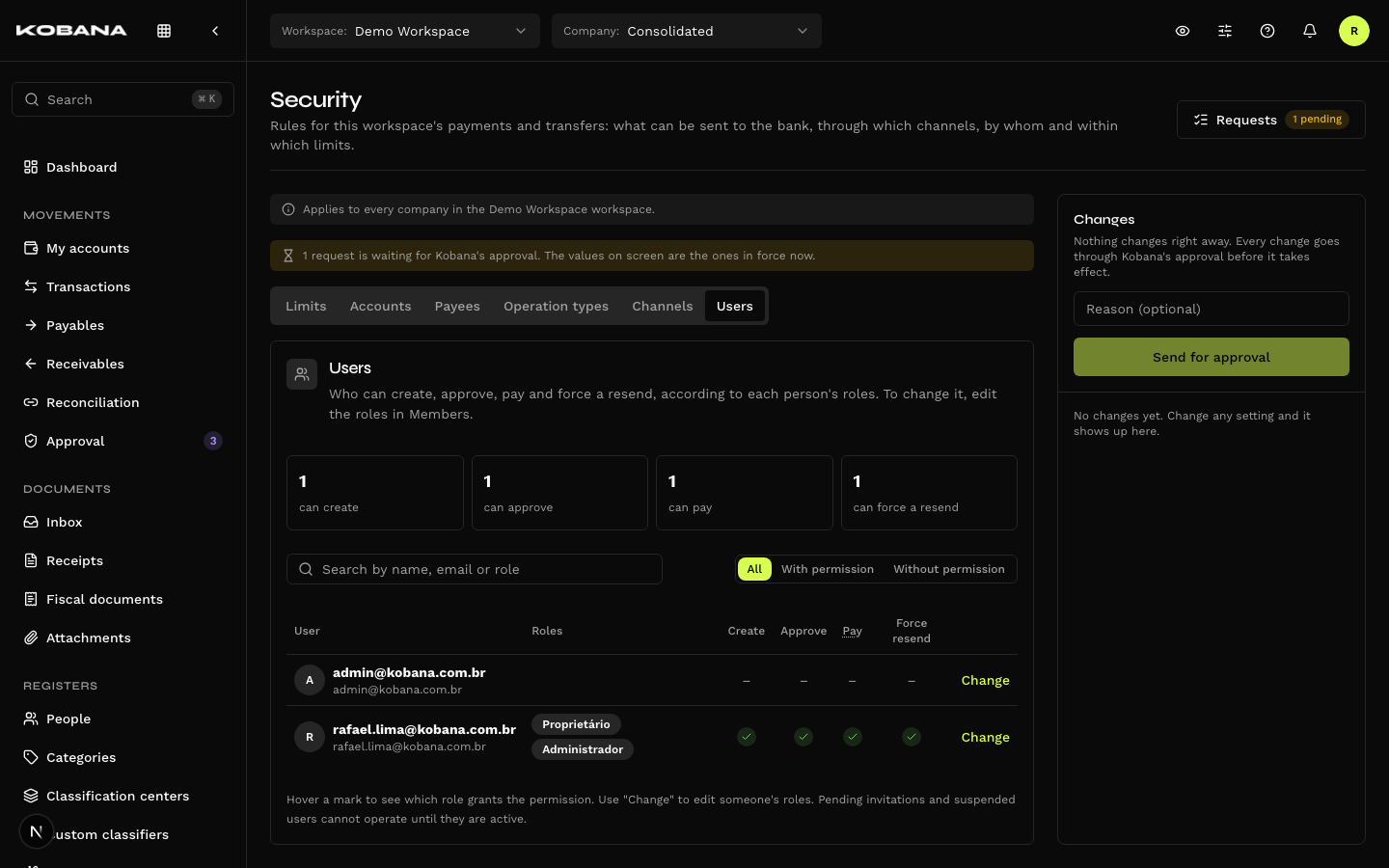
Read-only. Lists who has access to the workspace, each person's roles and what those roles allow: Create, Approve, Pay and Force resend. Hover a mark to see which role grants the permission. The same permission covers payments and transfers.
To change it, use Change, which takes you to the person's roles in Members — the link only shows for those who can view members. Pending invitations and suspended users can't operate until they are active.
When a rule blocks
When sending to the bank, the rules are checked in this order, and the first that fails decides: channel, operation type, account, payee (transfers only), night hours, per-transaction limit, period total, account daily limit and payee limits.
Nothing is rescheduled. A blocked bill stays where it is, with the reason in sight, and must be sent again once the rule allows it.
In the dispatch list
In the Send payments to the bank dialog — the "Send to bank" list in Payables —, a bill held back by a rule that depends only on the bill itself shows disabled, with the reason:
| Reason on the list | What to do |
|---|---|
| Channel not allowed to dispatch | Request Pay for the channel, on the Channels tab |
| Operation type turned off | Request the type, in Operation types |
| Account blocked for this operation | Request the operation for the account, in Accounts |
| Beneficiary not allowed | Request the CPF/CNPJ be allowed, in Payees |
| Night dispatch blocked | Wait for the day period to start |
| Above the per-transaction limit | Request a higher limit, in Limits |
The limits that depend on what has already been sent — period total, account daily limit, payee daily and monthly limits — show as a warning, and the row stays selectable: "Would exceed the period limit", "Would exceed the account's daily limit", "Would exceed the beneficiary's daily limit", "Would exceed the beneficiary's monthly limit". Hover to see the limit, how much was already sent and how much is left.
In a batch send, bills go in due-date order; once a limit is reached, the following ones that would exceed it are not sent, and the result lists each one with its reason.
If the automatic dispatch was refused by a rule, the row carries the Automatic dispatch blocked badge.
Night sending off
With Allow sending to the bank at night off:
- nothing goes to the bank between the start of the night and the start of the day — neither through the button nor through the automatic dispatch after approval;
- the list shows the notice "Bank dispatch blocked until 06:00" (with your hour);
- what was approved at night is not sent on its own in the morning: it stays on the list and must be sent again during the day period.
Batch held at the bank
A payment may be created at the bank at the end of the day while the batch's automatic approval falls in the night period. In that case the batch is not approved: it is held at the bank.
- On the bill, the payment card shows the "Held at the bank: night dispatch blocked" badge.
- On the dispatch list, those bills show up in the Held at the bank section.
- The Approve at the bank button — on the card and in the section — only works during the day period. It checks the rules again, approves the batch and resumes tracking the payment.
"Refresh status" and the automatic tracking do not approve a held batch.
On approval
With night approvals off or Approve off for the channel, the Approval screen shows a notice and disables the approve buttons. Rejecting is never blocked.
The same screen warns, on each bill, when it won't be able to be sent as it is ("Sending blocked by Security") — so whoever approves knows the release must be requested.
On creation
With Create off for a channel, the bill is not created: "The … channel can't create bills. Ask for it to be enabled in Security." For imports and integrations, the reason is recorded in the run's report, and a recurrence created through a channel that is off stops generating occurrences while it stays off.
Who can request changes
| Who | What they can request |
|---|---|
| Owner | Any change, on every tab |
| Whoever has the Approval settings permission | Only changes to the approval settings, through the Approval Settings screen |
| Other roles (Admin, Viewer…) | None: they see the rules, and the sidebar warns "Only people allowed to request security changes can send requests." |
By default, only the Owner requests security changes — not even the Admin. The decision is always Kobana's.